
How to Create Professional Slides with NotebookLM (The Ultimate AI Workflow)
If you are wondering how to create professional slides with NotebookLM, you are in the right place. Professionals waste anywhere from 20 to 60 hours crafting a single presentation. That is an entire workweek lost to formatting text boxes, aligning arrows, and adjusting color palettes while your actual work piles up.
Most AI presentation makers promise to fix this, but they usually fall short. They generate generic, unbranded layouts or, worse, hallucinate fake data that can embarrass you in front of clients. Enter Google’s NotebookLM. It creates presentations grounded only in the documents you provide.
Today, I am going to show you exactly how to automate the creation of presentations. You will learn an advanced Gemini reverse-engineering trick for perfect branding, plus how to use the features to export NotebookLM slides as .pptx files.
Quick Answer: Can NotebookLM Create Presentations?
Yes, NotebookLM can automatically generate presentation slide decks. By uploading your source materials to a Notebook and navigating to the Studio panel, you can generate a custom Slide Deck. You can add custom design prompts, revise individual slides, and export the final deck directly as a PowerPoint (.pptx) file.
Key Takeaways
- NotebookLM allows you to generate highly accurate slide decks based strictly on the proprietary source documents you upload.
- You can dictate the exact visual style of your presentation by pasting detailed design descriptions into the custom instructions box.
- Using the Gemini reverse engineering trick lets you seamlessly clone the aesthetics of any slide design you find online.
- You no longer have to scrap an entire presentation if one slide fails, because you can now revise individual slides seamlessly.
- Exporting your finished deck as a PowerPoint (.pptx) file directly to Canva allows you to delete watermarks using the Magic Eraser feature.
Why Use NotebookLM Over Other AI Presentation Makers?
I gave up on traditional AI slide generators a long time ago. Tools like Canva’s Magic Design or Tome often act like eager but incompetent interns. They pick random, chaotic layouts and inject unverified fluff. You end up spending more time fixing their design mistakes than you would have spent just building the deck from scratch. NotebookLM is fundamentally different.
1. Zero Hallucinations (Grounded Data)
NotebookLM only pulls information from the exact sources you provide. Whether you upload proprietary PDFs, YouTube links, or internal meeting transcripts, the AI builds zero hallucination slides. If the data is not in your source document, it simply will not appear on the screen. This makes it the ultimate AI presentation maker for freelancers, B2B professionals, educators, and executives who require absolute factual accuracy.
2. Granular Customization
Google recently rolled out game-changing updates to the platform. You now have access to a dedicated NotebookLM custom instructions text box. This allows you to dictate the exact tone, audience level, and visual hierarchy of your presentation before the AI generates a single word. You are no longer at the mercy of a black-box algorithm.
Step-by-Step: How to Create Professional Slides with NotebookLM
Before we get into the exact workflow, make sure you have a free Google account, your source materials ready to upload, and a reference image of a slide deck style you admire.
Step 1: Find Your Dream Slide Design
NotebookLM’s default visual output can feel a bit random if left to its own devices. To fix this, you need a visual anchor. Go to Google Images, Pinterest, or sites like Creative Market, Canva, or SlidesGo. Search for a design aesthetic that matches your brand—think “Tech minimal slide template” or “dark mode tech presentation.” Find a slide design image that features clean lines and a solid visual hierarchy. Save that image to your desktop.
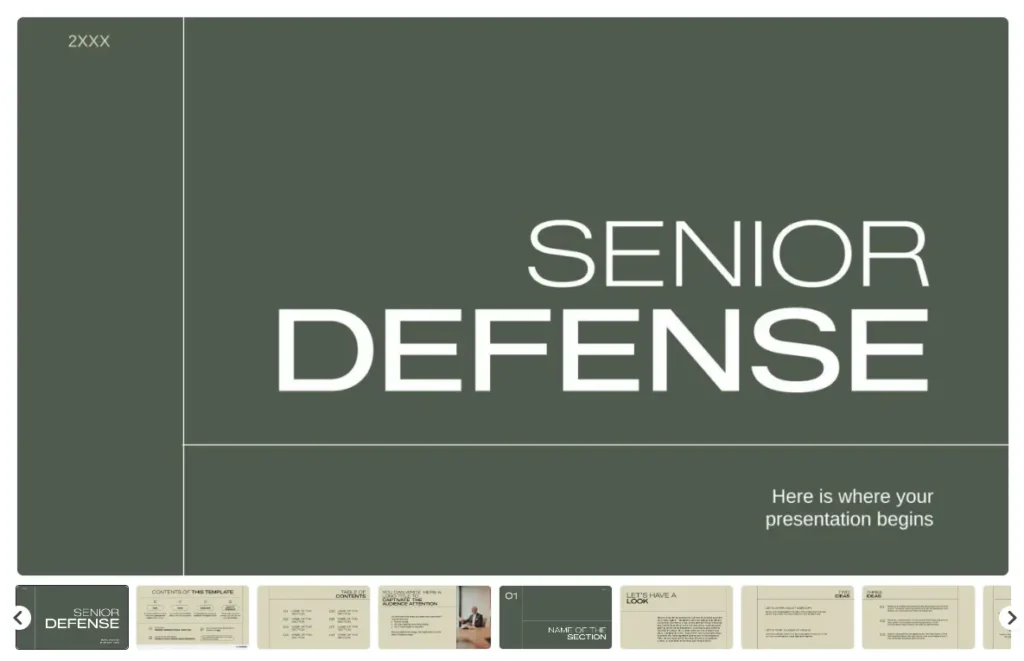
Step 2: The Gemini “Reverse Engineering” Trick (Expert Hack)
This is the secret sauce. To figure out how to create professional slides with NotebookLM that actually look polished, we are going to use AI to talk to AI. Here is the exact Gemini reverse engineering trick:
- Open Google Gemini (the free version works perfectly for this).
- Upload the reference slide image you just saved.
- Paste this exact prompt:
- Copy the highly detailed description Gemini generates. It will likely give you precise hex codes, font styles, and layout structures.
Related Reading: Top 10 AI Presentation Maker Platforms for Non-Designers
Step 3: Set Up NotebookLM & Upload Sources
Create a new project in NotebookLM. Upload your foundational materials into the source panel. If you are starting from scratch and need modern data, use the new Deep Research feature. Just type your topic into the search bar, hit “Deep Research,” and the AI will scrape, organize, and verify dozens of web sources for you in minutes.
Step 4: Generate and Customize the Slide Deck
Look at the Studio panel on the right side of your screen. Click on the pencil icon on the Slide Deck to open the customization menu.
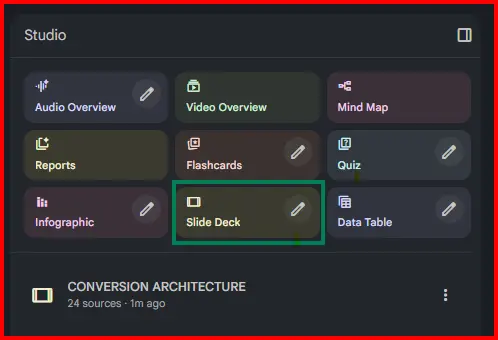
You will see an option to choose your format: Presenter Slides (clean, minimal text designed for live speaking) or Detailed Deck (comprehensive reading material intended for email).
Paste the visual description you copied from Gemini directly into the text field. Add one final sentence defining your audience, like: “The audience consists of C-level executives, so keep the tone sharp, authoritative, and completely free of jargon.” Hit Generate.
Step 5: Revise Individual Slides (No More Starting Over)
In the past, if an AI generated a 15-slide deck and one slide looked terrible, you had to throw the whole thing away and roll the dice again. Not anymore.
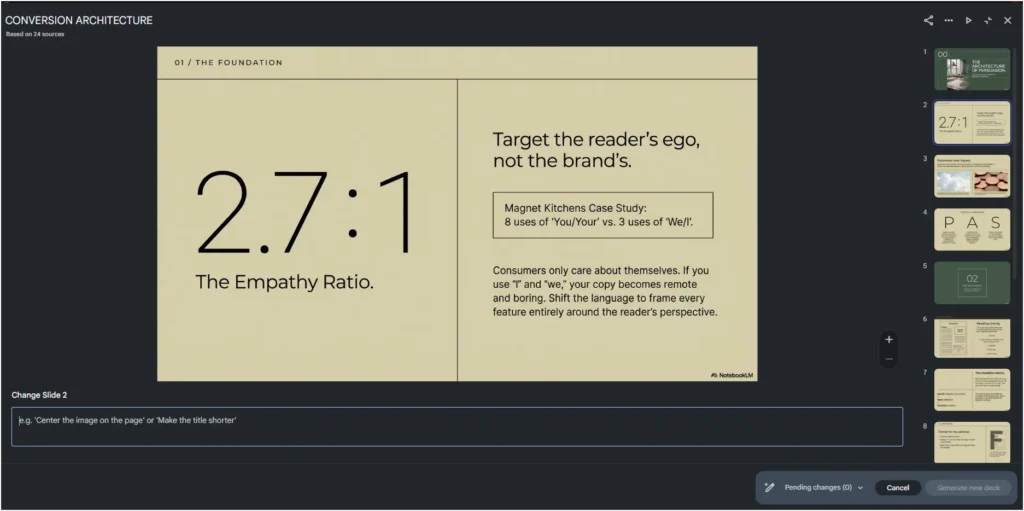
If a specific slide misses the mark, simply click the Revise icon in the top right corner of that exact slide. Type a highly specific command into the box—such as, “Break this dense paragraph into a punchy 3-step bulleted list”—and the AI will generate a new NotebookLM slide deck version without touching the rest of your presentation. It saves you an immense amount of cognitive load.
Related Reading: Create and Sell Interactive Slides with Lovable AI for Premium Rates
Step 6: Export Your Deck and Erase the Watermark
Currently, NotebookLM exports your presentations as flattened files. This means every element—including that pesky “Created with NotebookLM” watermark—is baked directly into the background. You cannot simply click and delete the text box. But do not let that ruin your polished aesthetic; there is a highly effective workaround.
First, click the three dots in the top-right corner of the NotebookLM viewer to download your presentation. Next, import that exported file directly into Canva. To banish the watermark, select your slide and fire up Canva’s Magic Eraser tool (note: this is a Canva Pro feature).
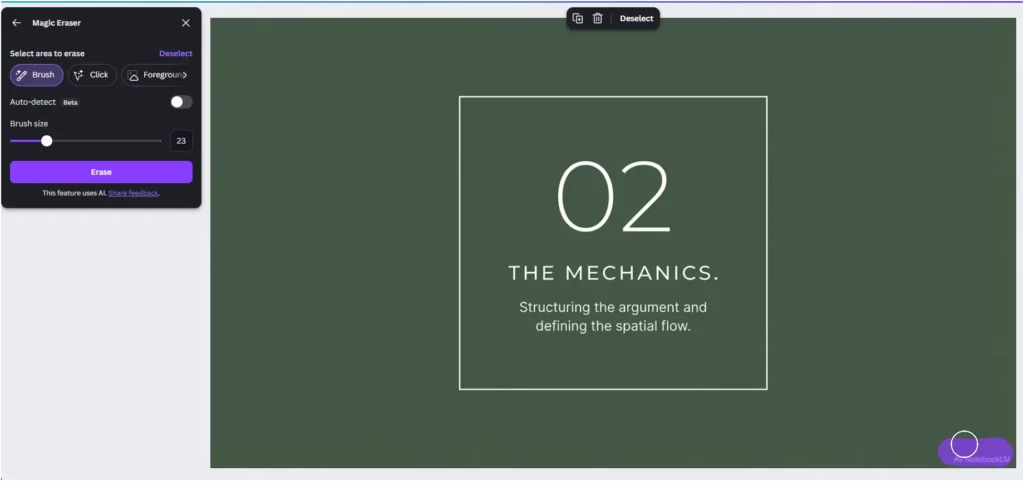
Simply adjust your brush size and paint over the NotebookLM logo in the bottom right corner of the slide. Canva’s AI will instantly reconstruct the background behind the logo, leaving absolutely no trace of the watermark. Repeat this quick sweep across your slides, export your clean deck, and you now have a flawless, beautifully branded presentation ready for the boardroom.
Bonus Workflow: Generating Data Tables for Presentations
Presenting massive datasets is usually a nightmare, requiring hours of tedious manual entry. However, NotebookLM introduced a new Data Table output in the Studio panel that handles the heavy lifting for you.
Imagine you need to compare ten different enterprise software tools for a client pitch. You feed NotebookLM the messy articles, transcripts, and spec sheets.
Then, you click “Data Table” and instruct the AI: “Create a comparison table of all tools mentioned, using columns for Tool Name, Pricing, Key Features, and Best Use Case.”
The AI will output a clean, highly structured spreadsheet. You can export this directly to Google Sheets with a single click, format it to match your corporate brand colors, and paste it directly into your presentation. It is a wildly efficient way to synthesize complex information.
The Freelancer’s Edge: Monetizing AI Presentation Services
If you are a freelancer, this workflow is a masterclass in time arbitrage. The market for professional presentation design is massive. Founders need investor pitch decks, online creators need course materials, and sales teams need polished client proposals. Historically, offering this service meant charging hourly for tedious layout adjustments and endless revision cycles.
Now, you can leverage NotebookLM to fundamentally change your business model. You are no longer just a pixel-pusher; you are a high-speed strategic partner.
When a client hands you a messy brain dump—a disorganized Google Doc, three-hour-long Zoom transcripts, and a rough PDF—you simply upload it all into your Notebook. Using the Gemini reverse engineering trick, you perfectly clone their existing brand aesthetic.
Because NotebookLM generates zero hallucination slides grounded strictly in its proprietary data, your very first draft is remarkably accurate. You download the deck directly as a PowerPoint (.pptx) file, remove the watermark, and polish the final product in minutes. You charge for the immense value of a premium, ready-to-present asset, not the fraction of an hour it actually took you to build it.
This is exactly how you make money with AI in a fiercely competitive freelance economy.
Must Read: A Guide for Freelancing with AI in 2026 and Beyond
Conclusion
Learning how to create professional slides with NotebookLM is a major lever for your career. By combining grounded, hallucination-free research with the Gemini reverse engineering trick, you can turn a grueling 20-hour task into a 10-minute workflow.
Stop wasting your evenings aligning text boxes and fighting with generic templates. Let the AI do the heavy lifting, and spend your valuable time refining the actual story you want to tell.
People Also Read: How to Make Money with AI in 2026: The Ultimate & Proven Beginner’s Guide
Frequently Asked Questions (FAQs)
Can NotebookLM export to PowerPoint?
Yes. NotebookLM allows you to export generated slide decks directly as .pptx files. However, keep in mind that these exported slides are currently flattened, meaning the text and visual elements are baked into the background rather than being individually editable layers.
Is NotebookLM free to use?
Yes, Google’s NotebookLM is currently completely free. You do not need a premium subscription to access advanced features like slide generation, custom instructions, or the deep research tool.
How do I remove the NotebookLM watermark from slides?
Because exported slides are flattened, you cannot simply select and delete the watermark text box. The most seamless workaround is to import your downloaded presentation into Canva and use the Magic Eraser tool (a Canva Pro feature) to brush over and erase the logo.
Does NotebookLM hallucinate information on slides?
No. NotebookLM is designed to be grounded strictly in the source documents you upload. It will not generate random facts or hallucinate data that does not exist in your provided materials.
What are NotebookLM custom instructions?
Custom instructions allow you to guide the AI before it generates content. You can paste detailed design prompts, define your target audience, and dictate the exact tone of your presentation to ensure accurate results.