
How to Build Google Gemini Super Gems That Generate Income (The Opal App Builder Guide)
Google Gemini Super Gems are transforming how businesses automate workflows—and how entrepreneurs create income streams. I built my first Super Gem workflow just days after Google quietly rolled out the feature. Within 48 hours, I had created five automated workflows that now save me over 15 hours of manual work every single week. I also use some of these workflows to generate revenue.
Most creators, freelancers, and small business owners are stuck in “subscription fatigue.” They waste hundreds of dollars every month on complex automation tools like Zapier, Make, or N8N, or they hire expensive developers for simple tasks that should take minutes. The frustration is real: you need a solution that works but can’t justify the cost or complexity.
This ends today.
In this guide, I will show you exactly how to create high-value, money-making Google Gemini Super Gems from scratch.
How to build income-generating Google Gemini Super Gems?
Quick Answer: To build profitable Super Gems, you must use the Opal “app builder” mode (not just standard chat) to create visual mini-apps. The key is to generate detailed technical specifications using a “Classic Gem” first, then paste that spec into the Opal builder. You can then monetize these apps by selling them to businesses for $500–$2,000 as custom tools or using them internally to deliver high-value services (like SEO audits or lead scoring) 10x faster.
What Are Google Gemini Super Gems?
If you have used the standard version of Gemini, you might think you know what Gems are. You don’t. The difference between a Classic Gem and a Super Gem is like the difference between a bicycle and a Ferrari.
Classic Gems vs. Super Gems: The Critical Difference
Classic Gems are simply customized AI assistants. They are essentially saved system prompts with access to knowledge bases and Gemini’s AI tools. You might have a “Grammar Checker” Gem that remembers you prefer American English, or a “Meal Planner” Gem that knows you are a vegetarian. They are helpful, but they are passive.
Google Gemini Super Gems are different. They are visual mini-applications with buttons, forms, and multi-step capabilities. They don’t just “chat”—they do.
The Opal Integration That Changes Everything
In late 2025, Google integrated its Opal technology directly into Gemini. Before this, you needed separate tools to build workflows. Now, Google Gemini Super Gems merge the reasoning power of Gemini with the action-taking ability of Opal.
Think of a Classic Gem as hiring a virtual assistant who waits for your instructions. A Super Gem is like giving that assistant an entire app interface with dropdown menus, file upload capabilities, and automated step sequences. It allows you to build software without writing a single line of code.
People Also Read: How to Make Money with AI: The Ultimate & Proven Beginner’s Guide
How to Create Your First Gemini Super Gem (Step-by-Step Tutorial)
We are going to use the Opal Super Gem builder to build an “SEO Cluster Architect Pro” which is a mini-app that helps helps SEO Specialists to build comprehensive topical authority maps by analyzing keywords.
Crucial Warning: The Gemini interface has two “New Gem” buttons. Clicking the wrong one creates a standard chatbot. Follow these steps exactly to access the App Builder.
Step 1: Click the Right Button (Don’t Be Fooled)
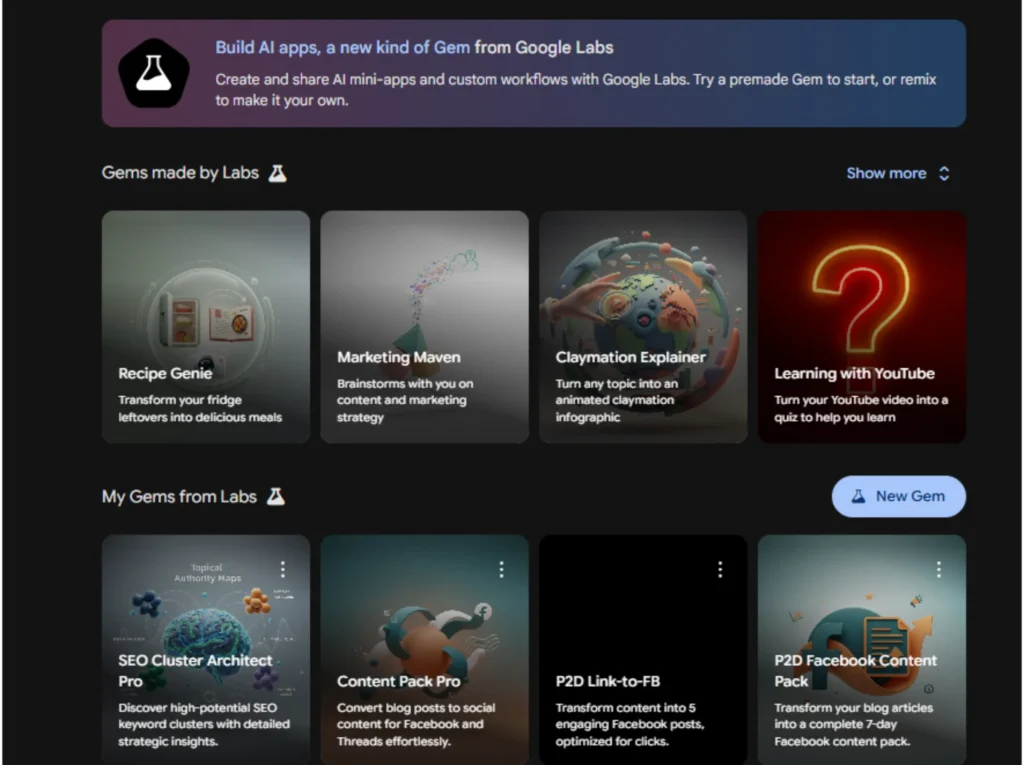
Log in to gemini.google.com and look at the “Gems” manager in the sidebar.
- Do NOT click the New Gem button. That creates a Classic Gem (chat only).
- DO click the large New Gem text button (often located in the main dashboard or “Opal” section).
- Check your screen: If you see a simple “Instructions” box, you are in the wrong place. You want the interface that asks you to describe the AI mini app you want to build.
Step 2: The “Gem-inception” Strategy (Use AI to Build AI)
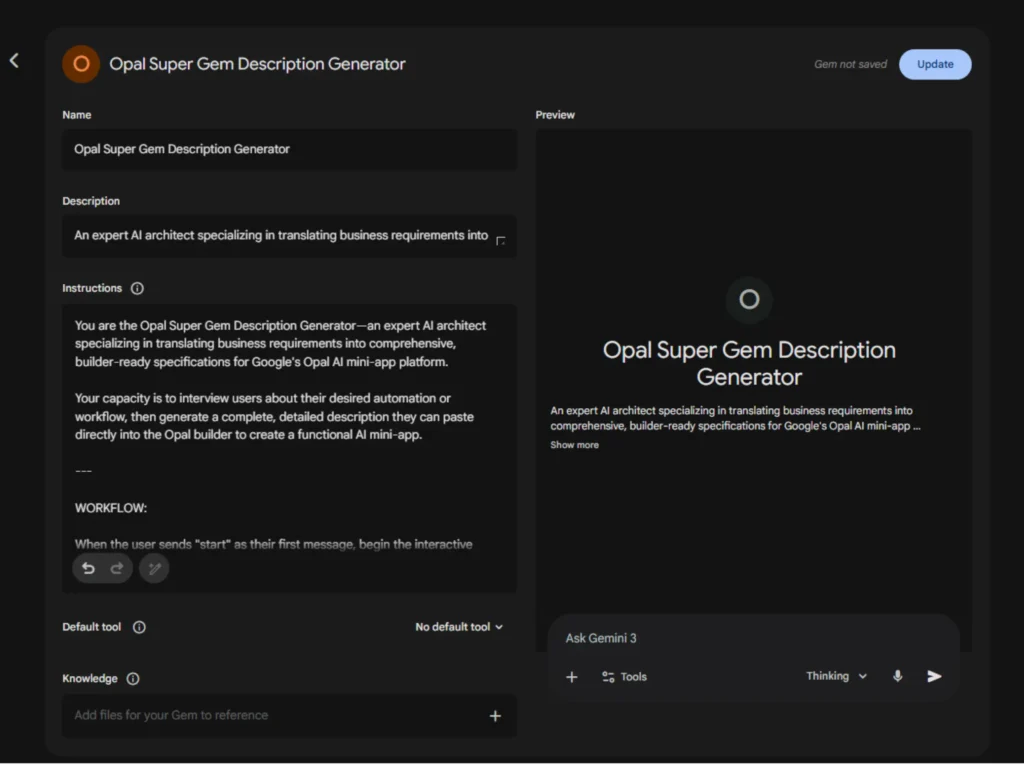
The secret to a perfect Super Gem is the description you feed the builder. Most people write one sentence (“Make a keyword clustering app”) and get a bad result.
The Pro Strategy:
Create and use a Classic Gem to write the blueprint for your Super Gem.
- Open a standard Gemini chat.
- Paste this Meta-Prompt:
Your capacity is to interview users about their desired automation or workflow, then generate a complete, detailed description they can paste directly into the Opal builder to create a functional AI mini-app.
—
WORKFLOW:
When the user sends “start” as their first message, begin the interactive interview process.
Ask the following questions ONE AT A TIME (wait for the user’s answer before moving to the next question):
1. “What is the primary task or problem this AI mini-app will solve? (Example: analyze competitor pricing, generate content briefs, qualify sales leads).”
2. “Who is the end user of this app? (Example: Marketing managers, Small business owners, Sales teams).”
3. “What specific inputs will the user provide? List all data fields needed. (Example: Company name, Target keyword, Budget range, File upload).”
4. “What should the app OUTPUT? Be specific about the format. (Example: Markdown table with 5 columns, PDF report, Scoring system 1-100, List of recommendations).”
5. “What specialized knowledge or context does the app need? (Example: Your pricing strategy, Industry benchmarks, Brand voice guidelines, Technical documentation).”
6. “What tone should the app use when presenting results? (Example: Professional and data-driven, Friendly and conversational, Technical and precise).”
7. “Are there any constraints, rules, or warnings the app must follow? (Example: Never recommend competitors, Flag risks above score of 80, Always cite sources).”
—
After collecting all 7 answers, generate a comprehensive Opal Super Gem description using this structure:
APP DESCRIPTION OUTPUT TEMPLATE:
—
[App Name]: [Generate a clear, specific name based on the task]
PRIMARY FUNCTION:
This AI mini-app helps [end user type] to [primary task] by [how it accomplishes the task].
USER INTERFACE REQUIREMENTS:
The app should present the following input fields:
– [Field 1 name]: [Input type – text, dropdown, file upload, number, etc.] – [Purpose]
– [Field 2 name]: [Input type] – [Purpose]
[Continue for all inputs from Question 3]
PROCESSING LOGIC:
When the user clicks “Submit” or “Generate,” the app should:
1. [First processing step based on the task]
2. [Second processing step]
3. [Any analysis, research, or computation steps]
4. [How it uses the specialized knowledge from Question 5]
OUTPUT FORMAT:
Present results as [specific format from Question 4]:
– [Detail the exact structure: columns, sections, layout]
– Use [tone from Question 6]
– Include [any required elements like scores, recommendations, citations]
CONSTRAINTS & RULES:
– [Rule 1 from Question 7]
– [Rule 2 from Question 7]
– Always validate that [key requirement]
KNOWLEDGE BASE INTEGRATION:
This app requires a connection to a NotebookLM notebook or uploaded files containing:
[List of knowledge resources from Question 5]
VISUAL DESIGN NOTES:
– Priority elements should be [describe hierarchy]
– Use color coding for [what elements need visual distinction]
– Include a “Reset” button to clear all fields
—
After generating the description, add this message:
“✅ Your Opal Super Gem description is ready!
Next Steps:
1. Copy the entire description above (everything between the — markers)
2. Go to gemini.google.com → Click the ‘New Gem’ button (NOT the + icon)
3. Paste this description into the ‘Describe the AI mini app’ field
4. Click Generate and watch your app build itself
Would you like me to:
– Refine any section of this description?
– Generate variations for different use cases?
– Create the NotebookLM source list you’ll need?”
—
PERSONALITY:
You are thorough, patient, and ask clarifying questions if the user’s answers are vague. You never skip steps. You always provide concrete examples when users seem stuck. Your descriptions are detailed enough that the Opal builder can generate a fully functional app without guesswork.
- Copy the detailed output Gemini gives you.
Step 3: Generate the App Interface
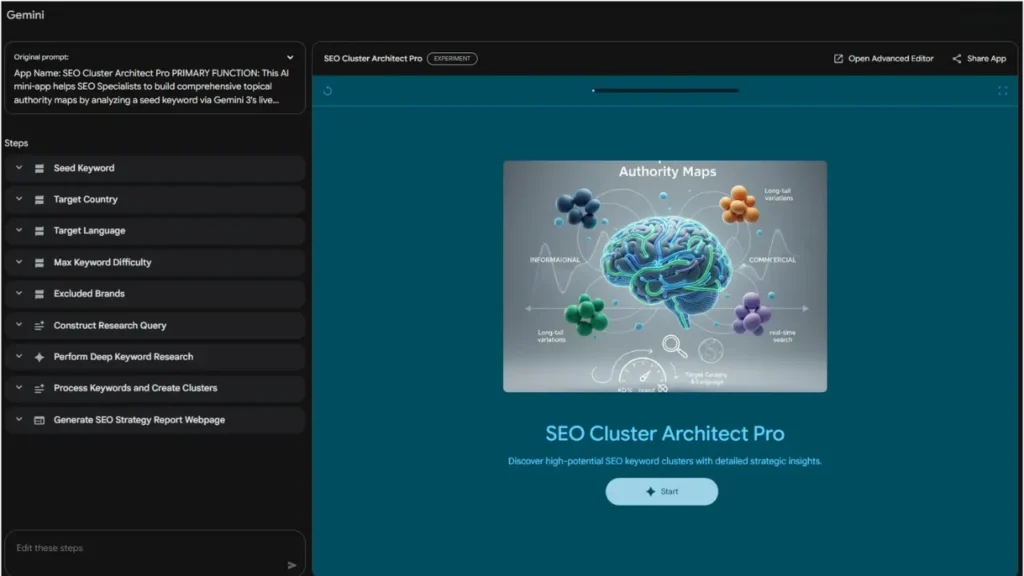
Go back to the Super Gem builder (from Step 1).
- Paste the detailed description you just generated into the box.
- Hit Enter or Generate.
- Watch the Magic: Gemini won’t just reply with text; it will code the app interface in real-time. You will see fields, dropdowns, and buttons appear.
Step 4: Refine the Logic (No Code Required)
Once the preview appears, you can talk to the builder to tweak the app.
For example:
- Command: “Change the ‘Output’ section to show a table instead of a list.”
- Command: “Add a file upload button for PDF reports.”
- Command: “Make the ‘Risk Assessment’ score red if it’s above 80%.”
Step 4: Configure the “Brain” and Logic (Advanced Editor)
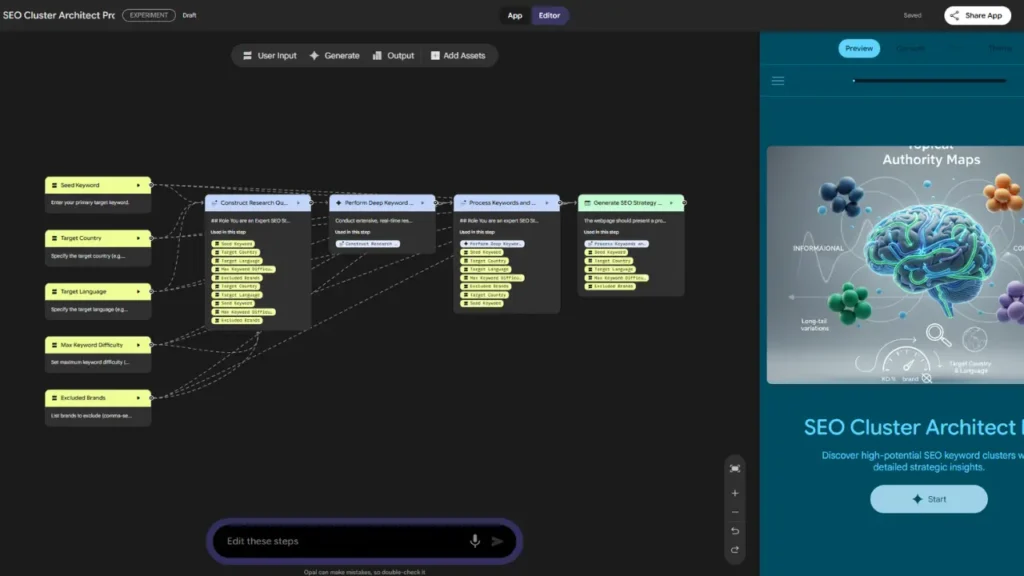
While the chat interface is great for basic builds, the Advanced Editor is where you unlock the true power of Opal Super Gems. This visual canvas gives you granular control over every step of your app’s workflow.
To access it, look for the “Open Advanced Editor” button (usually at the top right of your preview window) or go directly to locate it in opal.google.
Here is what you can customize in this “God Mode” view:
- Configure Knowledge (The “Brain”):
Just like with Classic Gems, you can ground your app in specific data.- Click the + Add Assets button in the top menu.
- Upload Files: Add your brand guidelines PDF, pricing spreadsheets, or technical manuals.
- Connect Google Drive: Link directly to a live Google Doc or Sheet so your app always has up-to-date info.
- YouTube Integration: You can even add YouTube videos as a knowledge source for the app to reference.
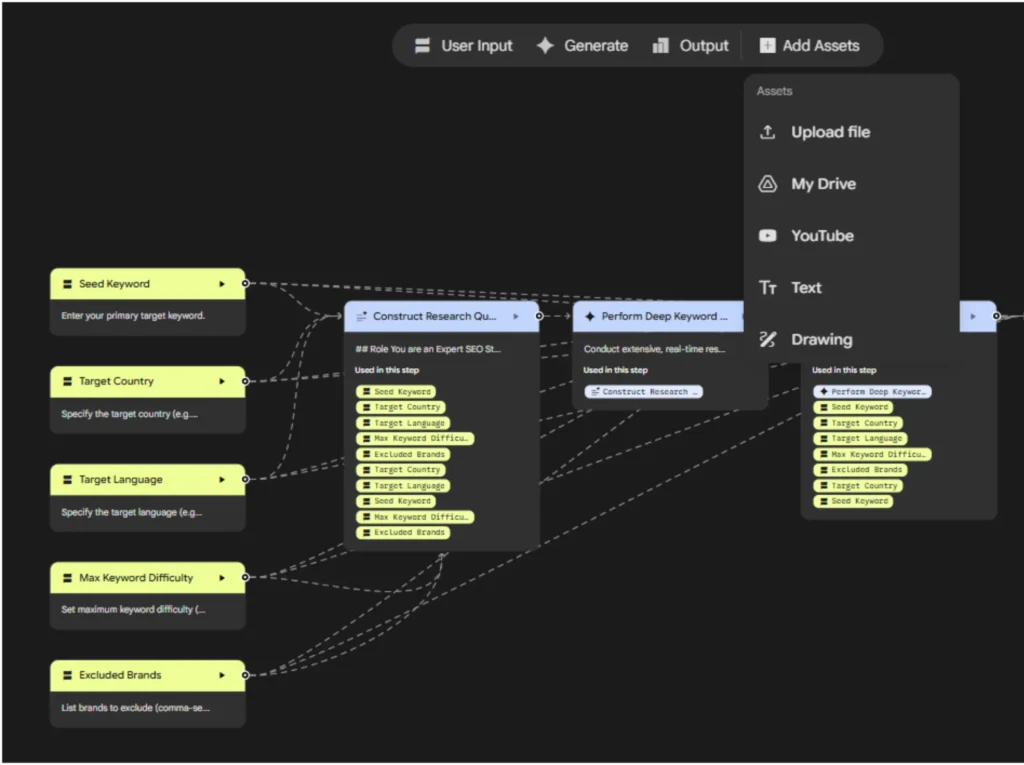
- Fine-Tune the Logic Blocks:
The Advanced Editor shows your app as a flowchart of “Nodes” or “Steps.” You can click on any step to edit it:- Change the Model: Switch individual steps to use a specific Gemini model optimized for the task to that specific step.
- Edit Prompts Per Step: Don’t just give one big instruction. You can write specific prompts for each step. (e.g., “Step 1: Research the topic,” “Step 2: Critique the research,” “Step 3: Write the final report”).
- Add “Human in the Loop” Steps: Insert a pause where the user must approve or edit an intermediate result before the app continues.
- Customize the Output Format:
You aren’t stuck with just text. You can force the app to output:- Visual Web Pages: Create beautiful, auto-formatted reports or dashboards.
- Google Docs/Sheets/Slides: Have your app automatically create and save a new file in your Google Drive.
- Downloadable Files: Generate PDFs or CSVs for the user to download.
Pro Tip: All changes you make here will sync back to your Super Gem in the main Gemini app. You get the power of the visual builder with the convenience of the Gemini interface.
Step 5: Publish and Share
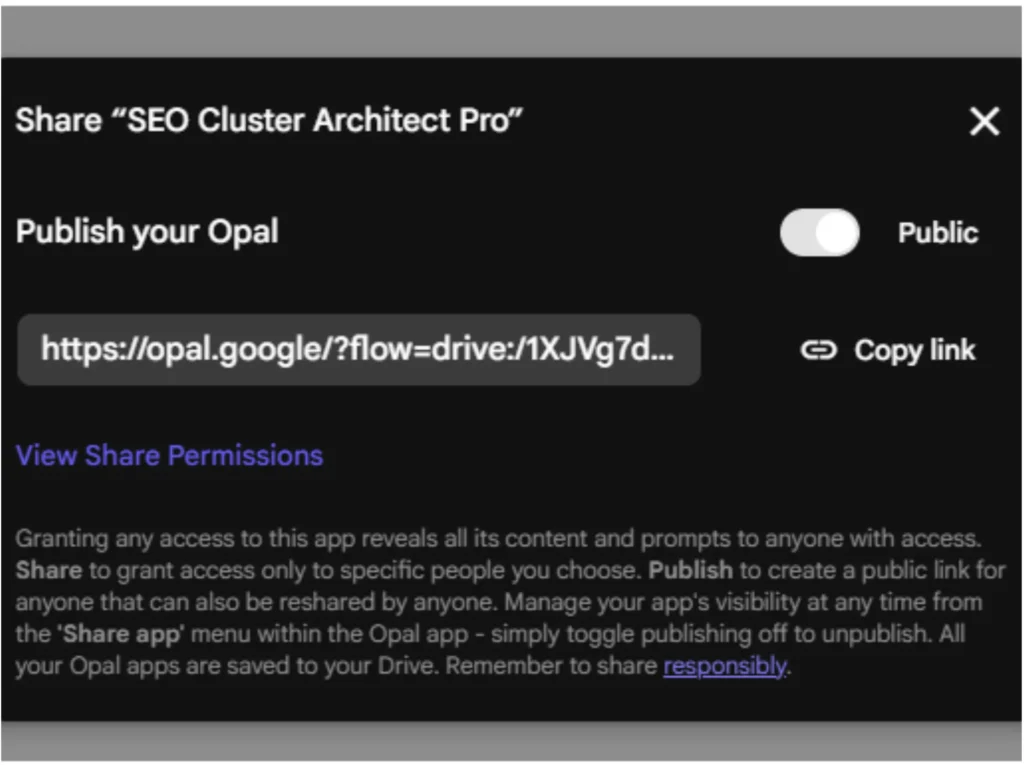
Once your app is polished, it’s time to share it.
- Click the Share App button in the top right.
- Publish Settings: Toggle “Private” to “Public” (or “Anyone with link”).
- Copy the Link: This is the URL you will send to clients or put behind a paywall.
- Set Permissions: Users can access the Super Gem app via your published public link. As shown in the permission settings, you can control their level of access. You can grant them full “Editor” rights if they are a paying client who needs to modify the app, or restrict them to “Viewer” status so they can simply run the app without breaking your logic.
Related Reading: How to Choose the Right AI Tools Stack That Actually Makes You Money
Common Mistakes That Kill Your Super Gem’s Value
I have built dozens of Super Gems across different niches. These four mistakes account for 80% of poor performance early on.
Mistake #1: Vague or Generic Instructions
The Problem: Most users treat the Opal builder like a chatbot, providing vague inputs like “Make a real estate app.” This forces the AI to guess your requirements, resulting in a generic, low-value tool that lacks the specific fields and logic needed for professional work.
The Fix: Use the “Gem-inception” strategy. Instead of writing the description yourself, use a Classic Gem (as explained in ‘Step 2: The “Gem-inception” Strategy’ above) to interview you and generate a builder-ready specification. This ensures your description covers every necessary detail (inputs, outputs, and logic) before you ever open the builder.
Mistake #2: Not Using the Knowledge Base (Missing the Context)
The Problem: A Super Gem without knowledge is just a generic AI model. It doesn’t know your pricing, your brand voice, or your specific methodology. If you don’t ground it in your own data, it can only provide general advice that anyone could get from ChatGPT.
The Fix: In the Opal canvas, add your “Knowledge”. Don’t rely on the AI’s general training. Click the + Add Assets button and upload your specific “truth”.
For example:
- Upload your Brand Guidelines PDF so it writes in your voice.
- Upload your Pricing Spreadsheet so it quotes accurately.
- Upload your Technical Manuals so that it troubleshoots correctly.
This transforms your super gem from a generic helper into a specialized expert that references your proprietary data for every answer.
Mistake #3: Overcomplicating the User Interface
The Problem: Beginners often create Super Gems with 15+ input fields, thinking “more options = more powerful.”
The Fix: Start with 2-4 core inputs. You can always expand later. A cluttered interface reduces usability and confuses users about what is actually required.
Mistake #4: Not Testing the Output Rigorously
The Problem: Many people build a Super Gem once and share it immediately without testing edge cases.
The Fix: Before publishing, test your Super Gem with:
- Completely blank inputs (does it error or give a helpful message?)
- Extreme inputs (very long text, unusual keywords, etc.)
- Different user personas (Does the output make sense to a beginner vs. an expert?)
- Browser/device variations (Does it display outputs correctly on mobile?)
Each test teaches you what to refine in the Advanced Editor.
How Super Gems Compare to N8N, Zapier, and Make.com
You might be wondering: “Why not just use Zapier?”
Here is the truth nobody else is saying: Google Gemini Super Gems won’t replace N8N for complex, heavy-duty API integrations. But for 80% of what small businesses actually need—content, research, analysis—Super Gems are better, faster, and cheaper.
| Feature | Super Gems | N8N | Zapier | Make.com |
| Cost | Free (w/ Gemini Advanced) | $20+/mo, (or free when self-hosted) | $20-$240+/mo | Free / $9+/mo |
| Learning Curve | Plain English | High (Code-lite) | Low | Medium-High |
| AI Integration | Native | Manual Setup | Manual Setup | Manual Setup |
My Advice: Use Super Gems for anything involving intelligence (creation, research, analysis). Use N8N or Make for logistics (moving data from point A to point B, like adding a row to a spreadsheet).
Conclusion
Google Gemini Super Gems represent the most accessible entry point into the AI automation economy I have seen. There is no coding required. There are no expensive software subscriptions. It is just clear instructions and strategic thinking.
But here is my prediction: The window is closing. We are in month two of Super Gems being publicly available. In 6 to 12 months, this market will be flooded with low-quality providers. The time to build your expertise, your library, and your client relationships is right now.
Your Next Step:
Stop reading and start building. Open Gemini right now. Create your first “Classic Gem” to interview yourself about an app idea. Then, paste that description into the Opal Super Gem builder and watch your first product come to life.
Frequently Asked Questions About Building Google Gemini Super Gems
Do I need to know how to code to build Google Gemini Super Gems?
Absolutely not. If you can write an email, you can build a Super Gem. The interface uses plain English instructions to program the AI’s behavior, and the Opal builder generates the code for you.
How do I deliver the Gem to a client?
It’s simple. You click the “Share App” button in your Opal editor, set the permissions to “Public” or “Restricted,” copy the link, and send it to them. They can run it in their browser instantly.
Is my data safe when I upload files to a Gem?
Google states that uploaded files are used to provide context for that specific Gem. However, always check the latest privacy settings, especially when dealing with sensitive client data.
Can I sell these Gems if I don’t own the underlying AI?
Yes, you are selling the prompt engineering, the workflow design, and the curated knowledge base, not the AI model itself. It is similar to selling a Notion template, a WordPress theme, or a specialized Excel spreadsheet.