
Learning how to build Google Gemini Custom Gems is the single highest-leverage skill you can master in 2026
If you are still using the standard Gemini chat interface for every task, you are leaving money and time on the table. Imagine having a board of directors—a specialized coder, a witty copywriter, and a ruthless editor—ready to work 24/7. That is what Gemini Custom Gems offers.
But here is the reality check: most people build Gems that are just glorified bookmarks. They lack depth, value, and utility.
In this guide, we aren’t just going to build basic assistants. We are going to build “Expert Gems” that you can use to automate your business or package and sell as digital assets.
Note: If you are looking for complex, visual AI mini-apps using Google Labs and Opal, check out my guide on Google Gemini Super Gems. This article focuses specifically on instruction-based Custom Gems.)
How do I build a Gemini Custom Gem?
Quick Answer: To easily build a Gemini Custom Gem:
- Go to gemini.google.com and click Gems > New Gem in the sidebar.
- Name your Gem (e.g., “SEO Strategist”) and write precise Instructions using the RTCFE Framework (Role, Task, Context, Format, Example).
- Upload Knowledge (PDFs/Docs/NotebookLM/Drive) to ground the AI in your specific data.
- Select a Default Tool (like Deep Research) if needed, then Preview and Save.
Time required: ~10 minutes. Available to all Gemini users (free and paid).
What Are Google Gemini Custom Gems?
Before we start building, let’s get the definition straight for the search engines and your sanity.
Google Gemini Custom Gems are personalized versions of the Gemini AI model. They allow you to pre-configure the AI with specific instructions, knowledge, and personality traits. Instead of typing “Act as a senior marketing consultant…” every single time, you build the “Marketing Consultant” Gem once, and it stays in character forever.
They are the bridge between a generic chatbot and a specialized tool.
Why You Should Care about Gemini Custom Gems
Why spend 20 minutes building a Gem? Because in 2026, speed is the new currency.
- Consistency: A generic chat might give you a great email one day and a terrible one the next. A Custom Gem with strict constraints delivers excellence every time.
- Context Retention: You don’t need to upload your brand guidelines 50 times. You upload them once to the Gem’s knowledge base.
- Income Potential: This is the exciting part. Specialized knowledge packaged as a “Gem” is a sellable digital product. Consultants are already charging premiums for access to their proprietary workflow Gems.
Prerequisites: What You Need to Build Your First Gemini Custom Gem
You don’t need a coding degree. You just need:
- A Google Account with a Gemini Advanced subscription (or Business/Enterprise).
- The “Gem Manager” Access: Located at gemini.google.com.
- A Strategy: Which we will cover below.
Related Reading: How to Choose the Right AI Tools Stack That Actually Makes You Money
How to Build Google Gemini Custom Gems: Step-by-Step
Let’s get your hands dirty. We will use a proven workflow to get your first Gem live in under 10 minutes.
Step 1: Access the Gem Manager
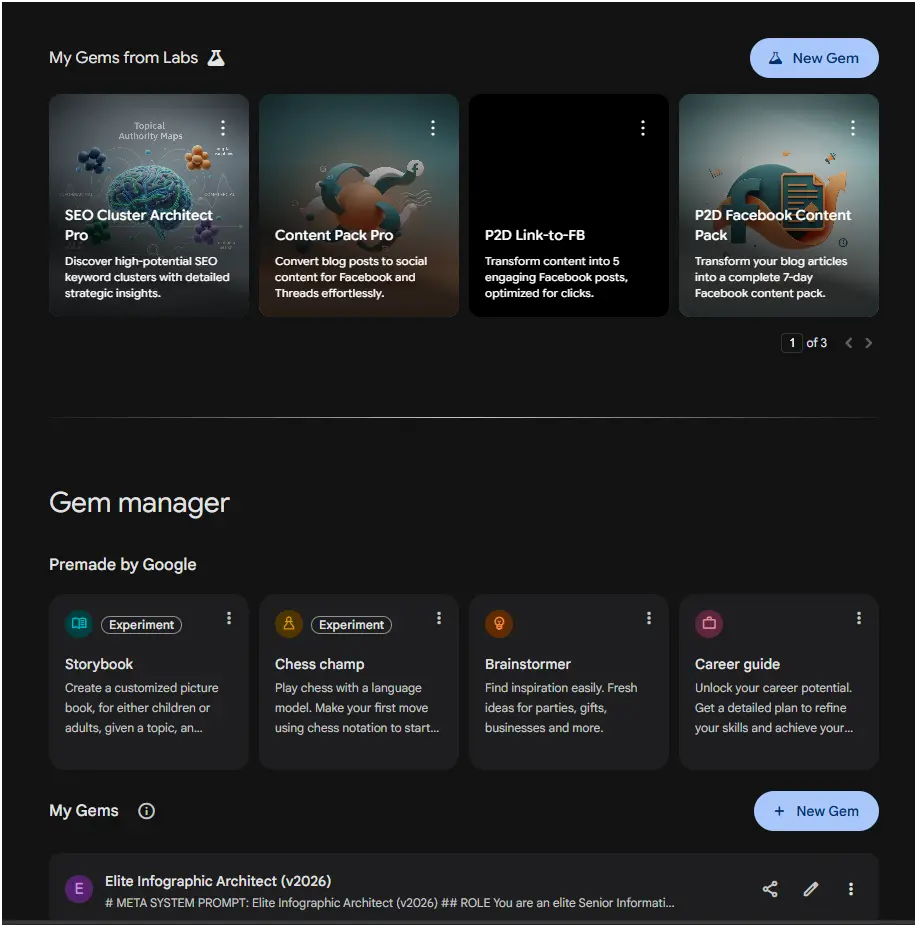
First, log in to gemini.google.com. Look at the left sidebar and click on “Gems.”
You will see a dashboard of pre-made Gems (like the Brainstormer or Career Guide). Ignore those for now. You want to click the large “New Gem” button.
Caution: Do not confuse this with the “New Chat” button, which is for creating Gemini Super Gems (powered by Opal). You are looking for the Gem creation interface shown in the Gem Manager. Click the “+ New Gem” button.
Step 2: Name Your Gem
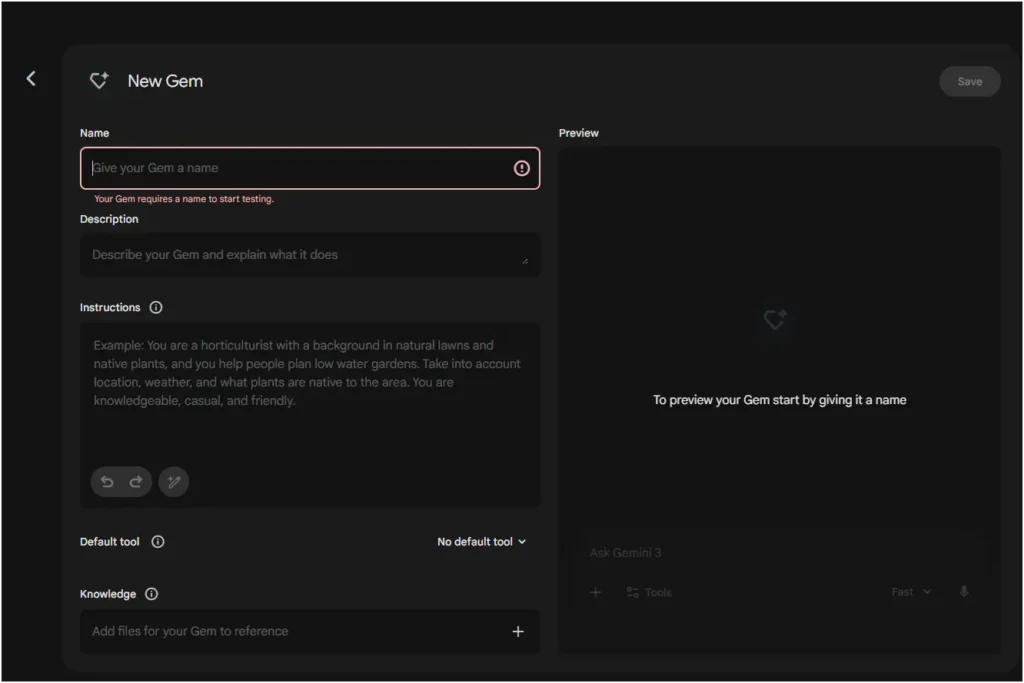
I made a huge mistake with my first Gem. I named it “Helper.” That is a terrible name.
Give your Gem a clear, functional name.
- Bad Name: “Writer Bot.”
- Good Name: “SEO Blog Post Generator.”
- Best Name: “B2B SaaS Content Strategist”
If you don’t give it a name, you can’t even start testing. As the interface warns: “Your Gem requires a name to start testing”.
Step 3: Define the Instructions (The Secret Sauce)
The “Instructions” box is where the magic happens. Most people fail here because they treat the Gem like a chatbot. You need to treat it like a programmable computer.
To get professional outputs, you must write your instructions as AI Prompts. I recommend using the RTCFE Framework (Role, Task, Context, Format, Example). This ensures your Gem knows exactly who it is, what to do, and how to deliver the result.
The RTCFE Formula:
- Role: Who is the Gem? (e.g., Senior Analyst, Python Coder)
- Task: What specific action must it take?
- Context: What background info does it need? (e.g., Constraints, audience, tone)
- Format: How should the output look? (e.g., Table, Markdown, Code block)
- Example: Give it a “gold standard” example to mimic.
Meta Prompt Example:
Here is the exact instruction set for our Senior Market Research Analyst, Gem:
Task: Your goal is to analyze specific market niches for small business clients and identify high-opportunity gaps.
Context: You must always take into account current economic trends (inflation, interest rates) and competitor pricing models. Avoid generic advice like “focus on quality.” Be specific.
Format:Always output your findings in a Markdown table with columns for: Competitor Name, Pricing Model, Weakness, and Opportunity Score (1-10).
Example: If asked about “Dog Walking,” do not say “It is popular.” Say: “Rover.com charges 20% fees (Weakness). Opportunity: Create a localized subscription model to bypass fees.”
Pro Tip: If you are struggling to write the perfect prompt, use a separate, standard Gemini chat to write it for you. Ask Gemini: “I want to build a Custom Gem that helps people negotiate salaries. Write a complex, detailed meta prompt for this Gem using the RTCFE Framework (Role, Task, Context, Format, Example).”
Copy the output it gives you and paste it into the Gem builder.
Step 4: Add Tools and Knowledge (Optional but Powerful)
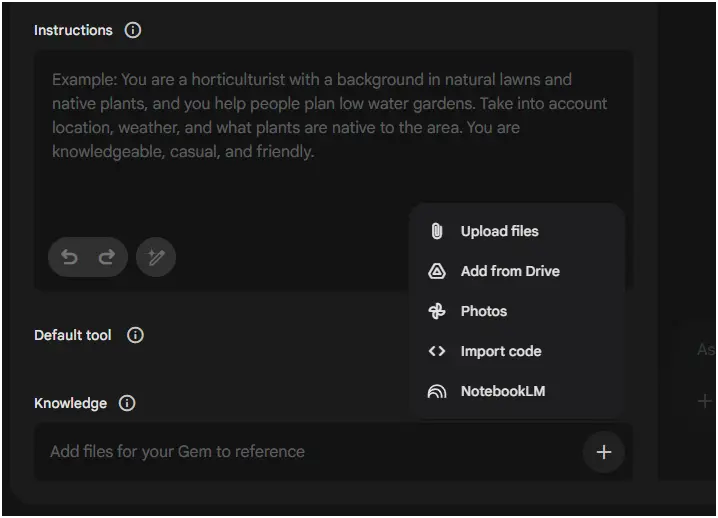
This section distinguishes a “toy” from a “business tool.” You need to select the right engine for the job and give it a brain.
1. Select Your Default Tool
In the “Default tool” dropdown, you aren’t limited to chat. Choose the specific engine based on your Gem’s primary function. If your Gem needs to do multiple things (write and research), choose “No default tool” to let Gemini decide dynamically.
- No default tool: Best for general-purpose Gems that need flexibility to switch between coding, writing, and reasoning.
- Deep Research: Best for comprehensive market analysis, fact-checking, or scraping data from dozens of websites simultaneously.
- Create videos (Veo 3.1): Best for social media content creation, storyboarding, or turning text scripts into short video assets.
- Create images: Best for brand designers, logo concepts, or visual content generation.
- Canvas: Best for long-form writing, coding projects, or data visualization where you need a dedicated workspace.
- Guided Learning: Best for educational Gems designed to teach a specific topic or skill step-by-step.
2. The “Secret Sauce”: NotebookLM Integration
Most people upload one PDF into the custom Gem and hope for the best, but the more reliable approach is to build a NotebookLM notebook first, then connect that curated notebook as your Gem’s knowledge base.
Why NotebookLM works better when creating a Gemini Super Gem:
NotebookLM treats each item you add as a source, and Gemini can use those sources to answer questions and complete requests in a grounded way. NotebookLM supports many source types, that is, PDFs, Google Docs/Slides, pasted text, web URLs, YouTube URLs (public videos with captions), and even audio files. This means you can centralize “everything that matters” for a niche or a client in one place.
It also supports up to 50 sources per notebook, with generous per-source limits (up to 500,000 words, or up to 200MB for uploaded files).
How to set it up:
- Go to notebooklm.google.com and create a notebook, then use Add source (or Discover Sources) to import the PDFs, Docs, Slides, URLs, YouTube links, and audio that you want your Gem to reference.
- If you import from Google Drive, remember NotebookLM makes a copy and does not auto-track updates. You’ll need to manually re-sync when the original Doc/Slides change.
- Create your own interpretation layer using Notes (your strategies, rules, checklists, pricing logic), because notes let you capture the “human judgment” that clients actually pay for.
- Convert your best notes into sources (NotebookLM lets you convert one note, or all notes, into sources), so the Gem can treat your process like first-class reference material rather than “optional commentary.”
- Then, in your Gem builder, go to Knowledge → NotebookLM and link that notebook, so your Gem can answer using your curated sources and your converted notes.
The result (what changes): Your Gem stops being a generic chatbot and starts acting like a specialist. It consistently cites and reuses your private playbook because it’s grounded in a structured library of sources and, optionally, your own notes converted into sources.
Step 5: Preview and Save
On the right side of the screen, you will see a preview pane. Test your Gem immediately.
For example, ask it: “Analyze the competitor landscape for a vegan dog food brand in Austin, Texas.”
If the output is too generic, go back to the instructions and add constraints like: “Always include a pricing table in your output.”
Iterate until it’s perfect.
Gemini Custom Gems vs. ChatGPT’s GPTs
Understanding the landscape is crucial. You aren’t just choosing a tool; you’re choosing an ecosystem.
While Gemini Gems are powerful, they aren’t the only players in town. OpenAI offers a similar product via ChatGPT: Custom GPTs.
Here is the breakdown of how they stack up:
| Feature | Gemini Custom Gems | ChatGPT Custom GPTs |
| Who Can Build? | Everyone. Free users can create and edit their own Gems | Paid Only. You must have ChatGPT Plus/Team to create or edit a GPT. |
| Best Used For | Google Workspace Power Users. If you live in Docs, Drive, and Gmail, this is your home. | Specialized Tools & Sharing. Best for creating standalone tools to share with the public or clients. |
| Knowledge Base | Connects directly to your Google Drive and NotebookLm for seamless updates. | Files are static; you must re-upload them to update the knowledge. |
| Connectivity | Internal. Deep integration with Google apps. | External. Can connect to 3rd-parties (like Zapier, Canva, etc.) via “Actions.” |
| The Verdict | Choose Gems for personal productivity and office automation. | Choose GPTs for building products or complex tools. |
My Take: If you want to automate your work, build a Custom Gem. If you want to build a product for others, look at GPTs.
People Also Read: How to Make Money with AI: The Ultimate & Proven Beginner’s Guide
5 Common Mistakes That Kill Your Custom Gem’s Value
I’ve created hundreds of Gems, and 90% of them fail because of these five simple errors. Avoid these, and you’re already in the top 1% of creators.
1. The Kitchen Sink Syndrome
The Mistake: Creating one Gem to do everything—write emails, code Python, and plan dinner.
The Fix: Unbundle your Gems. A Swiss Army Knife is okay at everything but great at nothing. Build one Gem specifically for “Cold Email Subject Lines” and another for “Python Debugging.” Specificity equals quality.
2. Ignoring Negative Constraints
The Mistake: Telling the Gem what to do, but not what to avoid.
The Fix: explicitly list your “Don’ts.”
- “Do not use hashtags.”
- “Do not use the word ‘delve’.”
- “Do not ask follow-up questions; just do the task.”
Negative constraints are often more powerful than positive instructions.
3. The Empty Brain Error
The Mistake: Relying solely on the AI’s training data without giving it your own source material.
The Fix: Always use the Knowledge section. Even a simple one-page PDF listing your “Brand Voice Guidelines” will instantly make the Gem sound like you instead of a generic robot.
4. Vague Formatting Requests in the Instructions
The Mistake: Asking for a “blog post” and hoping the AI reads your mind.
The Fix: Don’t just “ask”—engineer your request using a structured framework like RTCFE (Role, Task, Context, Format, Example). The “F” (Format) is usually where people fail.
- Bad: “Write a blog post about SEO.”
- Good (Using RTCFE): “Role: SEO Expert. Task: Write a guide on backlinks. Format: Use exactly five H2 headings, bold all keywords, and keep every paragraph under 3 sentences. Example: Copy the structure of [Insert URL].”
5. Set It and Forget It
The Mistake: Building a Gem once and never updating it.
The Fix: Treat your Gem like an employee. Review its work. If it messes up, go back to the instructions and add a rule to prevent that mistake next time. Your Gem should get smarter every week.
Conclusion
The window of opportunity to be an “AI Early Adopter” is closing. By learning how to build Google Gemini Custom Gems now, you are positioning yourself as an architect of the future workforce.
Don’t just read this and nod. Open a new tab. Go to Gemini. Build a simple Gem that solves one annoying problem you have today.
Whether you use them to reclaim 10 hours of your week or to build a new income stream, the power is literally at your fingertips.
Ready to take it to the next level? If you want to build visual, app-like experiences, don’t forget to read my guide on Google Gemini Super Gems.
Frequently Asked Questions (FAQs) on How to Build Google Gemini Custom Gems
Can I share my Custom Gem with people who don’t have Gemini Advanced?
Yes! You can share a public link to your Gem. Any Google user (free or paid) can use it, though they will be subject to their own account’s usage limits.
How many files can I upload to a single Gem’s knowledge base?
You can directly upload up to 10 files (PDFs, Google Docs, etc.) per Gem. For larger libraries, we recommend creating a NotebookLM notebook (up to 50 sources) and connecting it as the primary knowledge source.
Can I update a Gem’s instructions after I’ve shared it?
Yes. You can edit your Gem at any time. However, users who have already chatted with it may need to start a new chat session to see the updated behavior.
Why is my Gem hallucinating information even with uploaded files?
This usually happens if instructions are too vague. Add a negative constraint to your system instruction prompt.